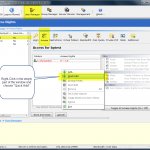
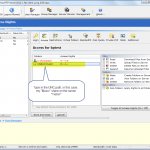
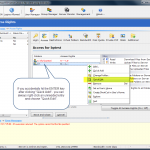
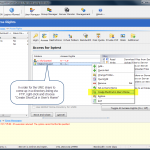
In the latest version of BulletProof FTP Server, you can also offer a UNC Share to your FTP-Clients.. even when the BPFTP Server is running as Windows System-Service!
This posting builds upon a previous article on how to expose Drive-Letters using “Virtual Folders” in BulletProof FTP Server, by showing how to use UNC Paths as well…
HOWTO: Using Virtual-Folders to Share Additional Drives/Folders via FTP
http://blog.builtbp.com/2011/12/howto-using-virtual-folders-to-share-additional-drivesfolders-via-ftp/
HOWTO: Windows System-Service. Also, please see the extended list of postings related to running BPFTP Server as a Windows System-Service:
http://blog.builtbp.com/2011/09/howto-windows-system-service/
http://blog.builtbp.com/category/bpftp-server/windows-system-service/