SERVICE: User-Access Control (UAC) prevents running Windows System-Service

This week, we discovered the source of a problem with running BulletProof FTP Server 2011.1.0.71 (and prior) as a Windows System-Service and the default settings for User-Access-Control (UAC). User-Access-Control (UAC) was first-introduced in Windows Vista as a tool to help isolate programs from making unauthorized changes to the Windows Registry; and is now included by default in Windows 7, Server 2008 and R2.

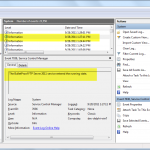
User-Access-Control blocks and prevents some of the functionality in BulletProof FTP Server 2011.1.0.71 (and prior), specifically the code dealing with Windows System-Services. This includes the installation of the SERVICE and it’s internal communications to the SERVICE when running the GUI.

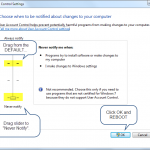
Bottom Line: In order to run BulletProof FTP Server 2011.1.0.71 (and prior) as a Windows System-Service, you will need to modify the User-Access-Control (UAC) and change it’s settings to “Never Notify”.

We understand this presents a security-risk in some environments and will be releasing an update in the coming days to address the problem.

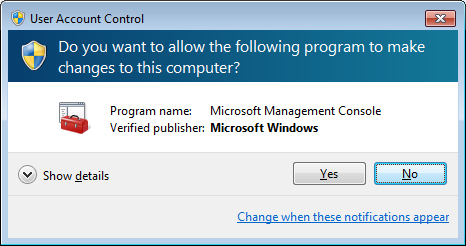
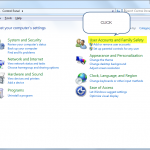
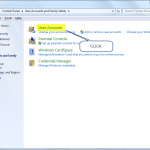
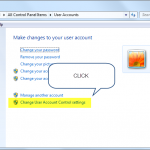
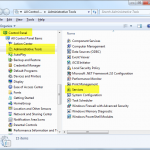
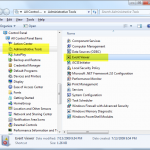
Please see the detailed steps below for changing the settings in UAC, starting in the Windows Start -> Control Panel.

One could argue that UAC was a big reason for the universal opinion that Vista was a flop; but still other techies are fans, as it can help protect the computer (if you don’t always click Continue without thinking).

HOWTO: Overridding the Storage-Path for Settings, Users and Groups

The latest version of BulletProof FTP Server (by default) stores everything related to the program’s operation, including “Settings, Users and Groups” in the non-roaming, local user storage location %LOCALAPPDATA%. This allows for a constant, microsoft certified location for the storage of files and settings related to a program. This path is user-specific, in that, it is private to the OS-USER that you use to login to Windows. In some environments, you may want to change this location to something that complies with your own standards .. or perhaps you would like to run the SERVICE as a different user than the GUI.

Starting with BulletProof FTP Server v2010 (including later versions), the path for storing the “Settings, Users and Groups” was changed as a result of security improvements to Windows (starting with Vista). Previously, the BulletProof FTP Server stored everything in the “Installation-Directory” for the software. However, with the development of User-Access-Control (UAC) in Windows Vista/2008, the storage-path for these files were redirected to the Virtual Store. This redirection of file-writes to now protected paths, such as the %ProgramFiles%, proved to be very cumbersome of difficult for our customers to manage. For this reason, we embraced the new location Microsoft has specified and developed the ability to OVERRIDE it for customers that wanted to retain control of this location.

Table-Listing of Storage-Locations over the past several versions of BulletProof FTP Server:
Q: Can I backup the Settings, Users and Groups?

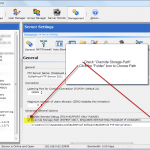
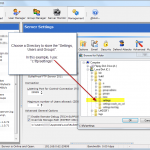
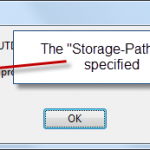
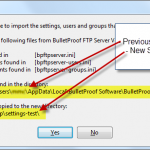
In the following example, you are stepped through the process of “Overriding the Storage-Path” in the program and the subsequent process that BulletProof FTP Server goes through to migrate the files containing the “Settings, Users and Groups”. Please note, this process can also be used to restore a backed up copy of your files.

HOWTO: Windows System-Service

BulletProof FTP Server 2011 can also run as a Windows System-Sevice, allowing you to serve up ftp-content from your computer without having to login to the system. This is a very handy feature for businesses that rely upon a FTP-Server to communicate with customers, receive files from automated processes or just-plain access your HOME computer from WORK.

Setting up Windows System-Service Support is very easy, but it does mean a little-bit of leg work on your end to satisfy Microsoft Windows’ security.

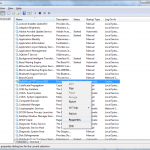
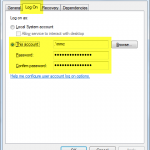
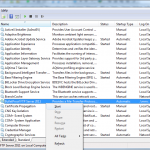
Click on a thumbnail to expand the image and see more information and instructions.

HOWTO: Remote-Debugging in BPFTP Server

The latest version of BulletProof FTP Server for Windows has an advanced debugging mode, which will send verbose, detailed information on your configuration, settings and what happens during the program’s execution.

This is very useful in understanding and solving a problem.

To toggle this mode, there’s a very simple checkbox under:

Management -> Server Settings -> General (tab) -> Adv. General Options -> Enable Remote-Debugging

If you are having Start-Up issues and can’t get the UI to come up for this option, you can also manually activate it:

1) Open NOTEPAD
2) Type the word "debug" (or really anything)
3) Save the Text-File to the installation directory for the software:

Under Windows (32-bit) the default path is:
C:\Program Files\BulletProof FTP Server 2011\remotedebug.txt

Under Windows (64-bit) the default path is:
C:\Program Files (x86)\BulletProof FTP Server 2011\remotedebug.txt

Then run through the steps that generate the error or that you have a question about and send us an email with your Computer-Name. This will allow us to pull the logs from the remote-debug-server and analyse the problem. The Computer-Name is obtained by:
Windows Start -> right-click "My Computer" or "Computer" and choose "Properties"

NOTES:

  • Please ONLY run under this REMOTE-DEBUG mode for a very short time; Enable it, perform the action which represents the problem, then Disable it. The amount of debugging information sent is extraordinary and running it for 30 minutes with several connected ftp-users will take hours to send the data.
  • FIREWALL: If you are running Windows Firewall or other types of firewalls (hardware or software based), you will need to allow the program to open an OUTBOUND tcp/ip connection to “remotedebug.builtbp.com” on tcp/ip port 30101.
  • When this mode is enabled, you will see a new process appear under “Task Manager -> Processes -> (sort) Image Name” called “CSDISPATCHER.EXE”. This process is responsible for relaying the debugging information from BulletProof FTP Server to the Remote-Debug-Server. Killing this process, will empty the outbound queue of remote-debug-messages.
  • Windows System Service: Logon As Service

    Microsoft is known to be one of the most security (gui) operating-systems on the ‘net. For us old salts, we know it certainly didn’t start that way. Over the last decade, Microsoft has made tremendous strides… but with that comes added levels of complications.

    Take running BPFTP Server as a Windows-System-Service, one of the most common technical-support questions (second to Firewall settings )… It’s a complicated issue.

    In order to run BPFTP Server as a Windows-System-Service, you must give it a USER/PASSWORD to run under. In BulletProof FTP Server 2011, this is done under:

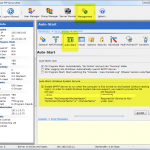
    Management -> Server Settings -> Auto-Start (tab) -> Auto-Start: Windows System Service

    Or, You can change it directly from Windows in:

    Windows Start -> Control Panel -> Administrative Tools -> Services -> BulletProof FTP Server 2011 -> right-click for "Properties" -> "Logon" (tab)


    NOTE: This USER/PASSWORD needs to be the same one you run the GUI version as, since the Settings, Users and Groups are all stored in:

    "%LOCALAPPDATA%\BulletProof Software\BulletProof FTP Server\2011\"

    NOTE: You can get around this, by overriding the “default storage-path” in BulletProof FTP Server 2011 under the following:

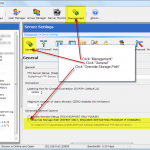
    Management -> Server Settings -> General (tab) -> Adv Settings -> Override Storage-Path


    Which brings us to the permission “Logon as Service”… The magically permission that the OS-USER needs to have in Windows in order to run BulletProof FTP Server 2011 as a Windows System Service.

    Microsoft: Logon as Service
    http://technet.microsoft.com/en-us/library/cc739424(WS.10).aspx