Windows FTP Server with SFTP and FTPS
BPFTP Server has the ability to operate as a Windows System Service aka SERVICE-MODE (HOWTO).
This is essentially, the same as the normal GUI-MODE that you are used to seeing when you login to the computer and run the application, however it’s running under Session-0 (Windows System Service) and all GUI operations are hidden. This can make it more difficult to diagnose issues, as the software can only respond via the Windows Event Viewer (start, view) and the BPFTP Server Log (Settings -> Logging -> Settings -> “Saved Log-File Location”).
But, why is it not responding or is stuck at 100% ?!?!
I don’t immediately know the answer to this, the software doesn’t have any known problems which would cause this.. so we need to look at the environment, conditions and logs coming back from the software. It’s possible that there’s a network share that isn’t responding (the most likely issue), it’s also possible you’ve encountered an issue, in either case, we need more information…
When encountering a problem with running in SERVICE-MODE, it’s important to start breaking down the problem:
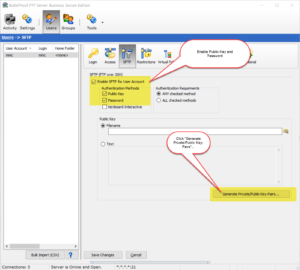
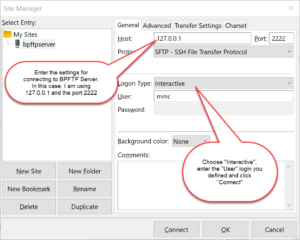
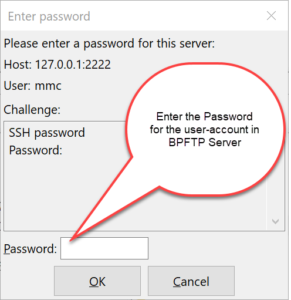
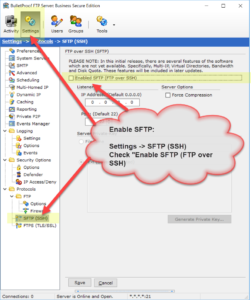
As of version 2018.0.0.40, BulletProof FTP Server supports SFTP aka FTP over SSH in the Secure Edition of the product.
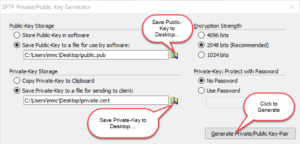
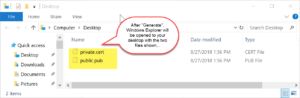
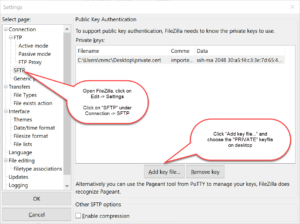
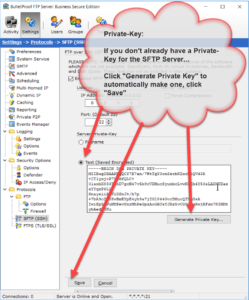
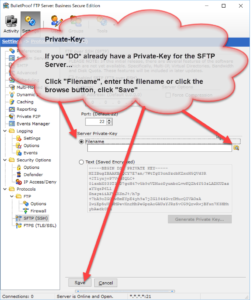
Enabling SFTP is very simple and only requires a Private-Key. The Private-Key can be loaded via a file or text which has been copy/paste’d into the software (NOTE: text keys will be stored encrypted in the software).
In some Windows configurations, it might be necessary to enter the license-code via the command-line. Specifically, in Windows Server where “Internet Explorer Enhanced Security” is turned on (More Info: here, here, here, here and here). When IE ESC is turned on, you’ll need to turn it off; this is because the dialog-box that appears for entering your registration code uses the IE WebKit and as a result the links won’t work correctly.
However, you don’t have to disable IE ESC, you can also enter it via the command-line:
1) Start -> Run -> "cmd" (enter)

2) c:

3) cd "C:\Program Files (x86)\BulletProof FTP Server"

4) Working with a license-code that looks like...
Name:John Doe
Key:00012X-8d7DJF2-6F323F-JVQBUA-8DJF3F-28RR4E-02Z6PC-ZXG37G-QBFDH2-NPDPBM-9XS9D9-MPH56G
Enter the following command:
bpftpserver.exe QUIETREGISTER John Doe 00012X-8d7DJF2-6F323F-JVQBUA-8DJF3F-28RR4E-02Z6PC-ZXG37G-QBFDH2-NPDPBM-9XS9D9-MPH56G
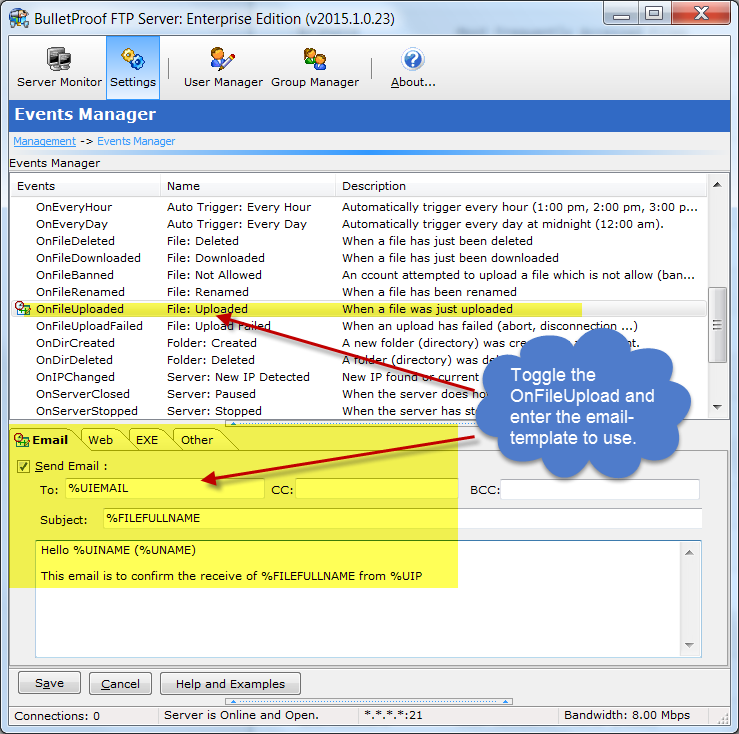
For a list of %VARIABLES that you can use in your email template, please see the following URL:
http://blog.builtbp.com/2015/02/feature-event-scripting/
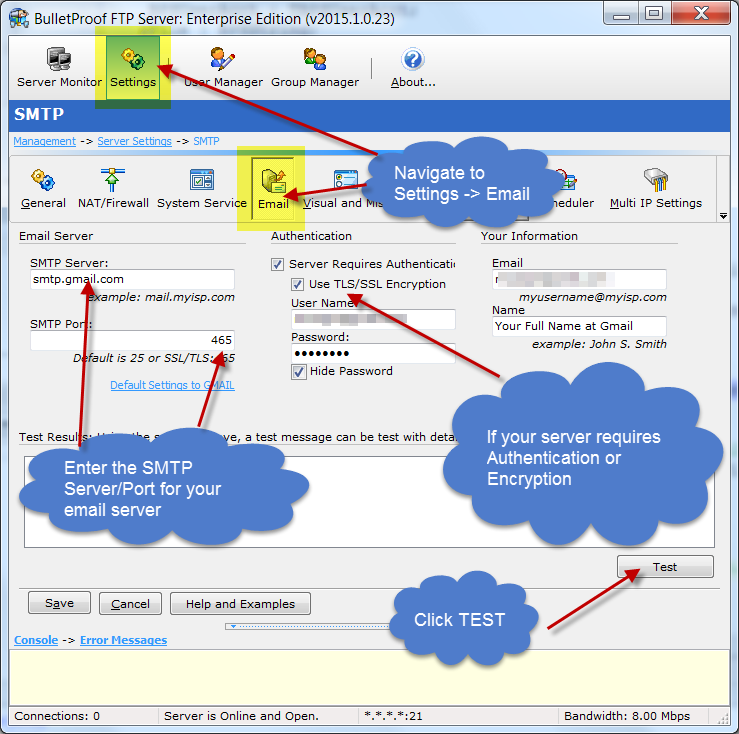
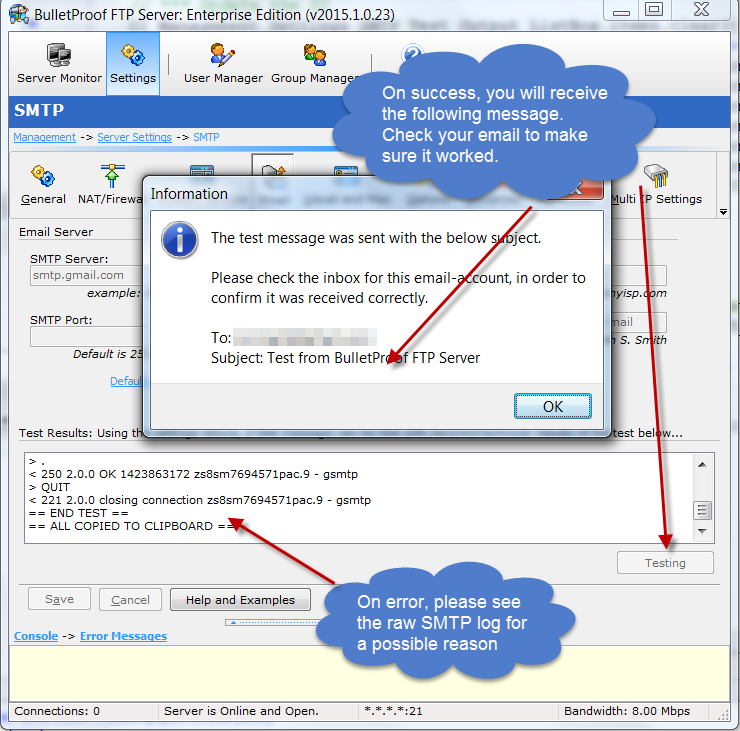
Below is a list of HOWTO articles that have been written over the years to help customers in getting up and running with BulletProof FTP Server.
Note: Some of the screen-shots show older versions of the software. The UI hasn’t changed much between different versions, but you might find some of the buttons labeled differently than what appears.
HOWTO: Downloading BPFTP Server 2010
http://blog.builtbp.com/2010/09/howto-downloading-bpftp-server-2010/
HOWTO: Installing BPFTP Server 2010
http://blog.builtbp.com/2010/09/howto-installing-bpftp-server-2010/
HOWTO: Adding a User
http://blog.builtbp.com/2010/09/howto-adding-a-user/
It’s VERY common that people think only one-port is needed for ftp (default: tcp/ip 21). However, this is not true.
FTP requires at least two ports, one for the control-port (used to login and issue commands, default tcp/ip 21) and a data-port (default tcp/ip 30000 to 30100). One data-port is needed for every concurrent data-connection, for this reason we suggest using a range of 100 ports which will handle most needs.
HOWTO: Windows Firewall and BPFTP Server 2011
http://blog.builtbp.com/2011/06/windows-firewall-and-bulletproof-ftp-server/
HOWTO: Windows Firewall
http://blog.builtbp.com/2010/09/howto-windows-firewall/
HOWTO: Setting up NAT/Passive/Firewall Support
http://blog.builtbp.com/2010/09/howto-setting-up-natpassivefirewall-support/
HOWTO: Enter Your Subscription-Code
http://blog.builtbp.com/2013/05/howto-enter-your-subscription-code/
HOWTO: Purchase an Upgrade to your License
http://blog.builtbp.com/2014/02/howto-purchase-an-upgrade-to-your-license/
HOWTO: Remove Your License-Code
http://blog.builtbp.com/2013/05/howto-remove-your-license-code/
FAQ: Can I Upgrade and retain all my Users, Groups and Settings?
http://blog.builtbp.com/2011/12/faq-can-i-upgrade-and-retail-all-my-users-groups-and-settings/
FAQ: Where does BPFTP Server store the Users, Groups and Settings?
http://blog.builtbp.com/2011/12/faq-where-does-bpftp-server-store-the-users-groups-and-settings/
HOWTO: Overridding the Storage-Path for Settings, Users and Groups
http://blog.builtbp.com/2011/10/howto-override-storage-path-for-settings-users-and-groups/
HOWTO: Windows System-Service
http://blog.builtbp.com/2011/09/howto-windows-system-service/
This HOWTO video shows the process of executing the “reload” command at the command line to reload changes made to the USERS file.
1) BPS currently running as a SERVICE
2) Logging into BPS using “ftp.exe”
3) While the ftp-client is still connected
4) Change the “bpftpserver-users.ini” and edit the password
5) Issue the “bpftpserver -reload” command
6) BPS launches another instance to instruct the current instance to reload the configuration
7) The original ftp-client is still connected
8) Disconnect original ftp-client and try to login as old password (doesn’t work, since it was changed)
9) Try to login as the new password, it works.